
Short version: to convert a website to PDF in Chrome, install Page to PDF, open the page, click the toolbar icon and choose Full Page. The extension scrolls the page so lazy images load, hides sticky headers so they don't repeat on every sheet, renders a vector PDF, and opens it in a viewer. Roughly ten seconds on a normal article. Nothing leaves your machine.
First, the question nobody asks out loud
"Convert website to PDF" means two completely different jobs, and picking the wrong tool is why people end up frustrated.
Job one: this page, right now. A pricing table, a recipe, an order confirmation, a Notion doc, a chart on an internal dashboard. That is what most people actually want, and that is what this extension does.
Job two: every page on a domain, crawled and bundled into one file. Documentation sites, small marketing sites, a wiki someone is about to shut down. That needs a crawler, not a browser extension — and crawlers arrive as anonymous visitors, so anything behind a login comes back as a sign-in screen. More on that below, including the workaround that actually works.
How to convert a website to PDF in Chrome
- Install the extension. Open the Chrome Web Store listing, hit Add to Chrome, then pin the icon next to the address bar. Thirty seconds, no account.
- Open the page you want to keep. Log in first if it needs a login. The converter reads the page as your browser rendered it, so whatever you can see is what lands in the file.
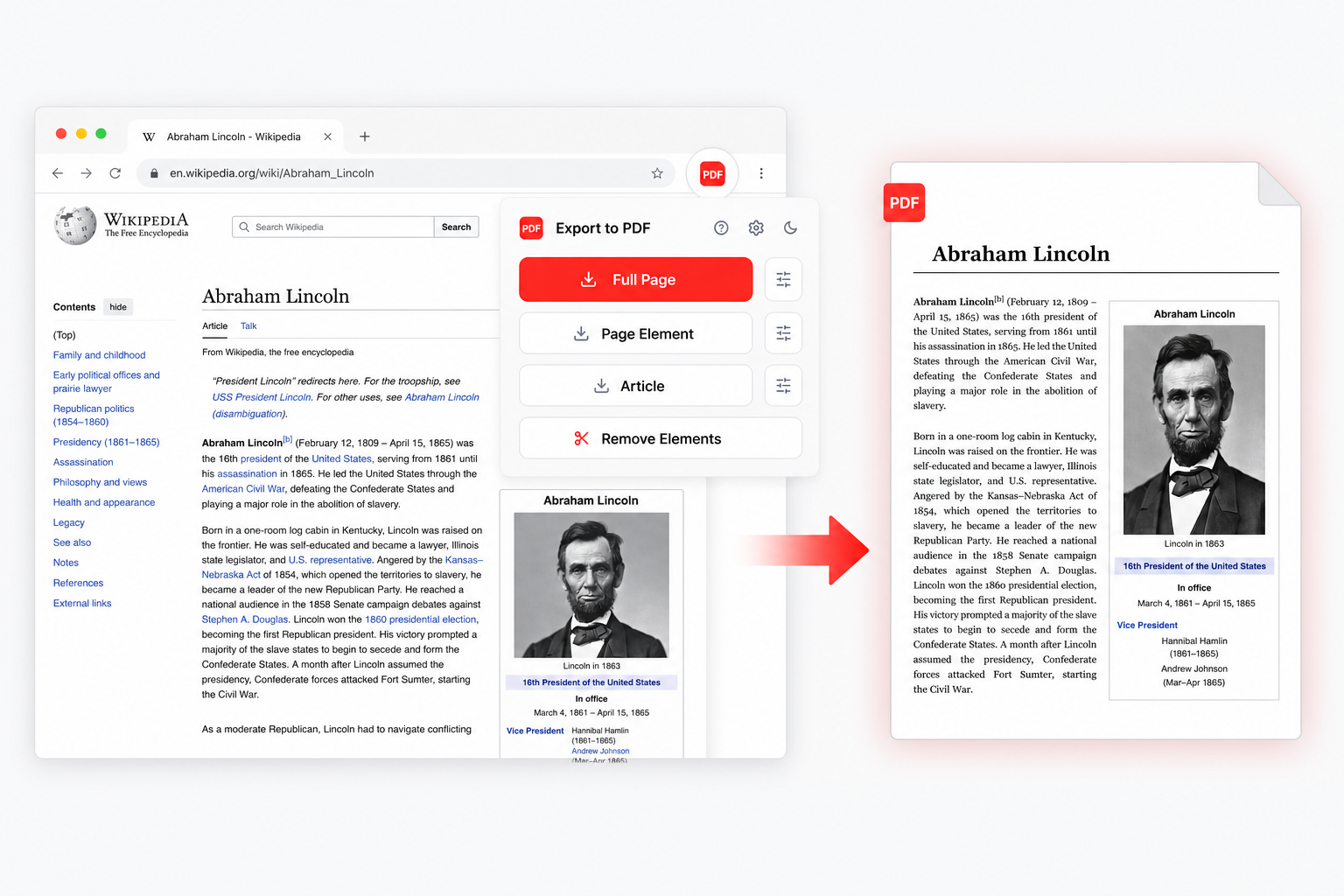
- Click the icon and choose a mode. Full Page for the whole document, Element for a single block, Article for a reader-style layout, Cleanup to delete banners first.
- Save it. The PDF opens in a built-in viewer with the page count and zoom controls. Check it, then download.
The honest limitation: one page per run
This tool converts the tab you have open. It does not crawl. If you need forty pages of a documentation site, you will click forty times, and that is a genuinely worse experience than a crawler for that specific job.
What makes it worth doing anyway: those forty pages come out with your session applied. Internal Confluence, a client's staging site under HTTP auth, a course platform you paid for — a crawler gets a login wall on every one of them, and the PDF it hands back is forty copies of the same sign-in form.
The workflow people settle on:
- Middle-click the links you want so they open as background tabs.
- Walk the tabs, converting each with the same mode. Settings persist between runs, so it becomes muscle memory.
- Merge the files afterwards in Preview on macOS, or any free PDF merger, if you want one document.
For a fully public site with no login and dozens of URLs, a dedicated crawler is the better call. Use the right tool; we are not going to pretend otherwise.
Why local conversion changes what you are willing to save
Most online website to PDF services work by fetching the URL from their own infrastructure. That has two consequences people underestimate.
The first is capability. Their server is not signed in as you, so a dashboard, a paywalled article or an internal tool converts into whatever an anonymous visitor sees — usually a login form.
The second is exposure. To convert the page, you hand over the URL, and often the rendered HTML with it. For a public blog post nobody cares. For an invoice with your address on it, an HR page, a draft, or a client document under NDA, that is a copy of your data on someone else's disk with a retention policy you have never read.
Page to PDF has no backend to send anything to. Rendering happens in your Chrome process, the file lands in your downloads folder, and the network stays out of it. Details are in the privacy policy.
What the converted file actually is
A real PDF, not a screenshot in a PDF wrapper. That distinction decides whether the file is useful in six months.
- Text stays text. Select it, copy it, search it with Cmd+F, let a screen reader read it aloud. Full-text search in Spotlight or Windows Search finds the file by its contents.
- Links keep working. Both internal anchors and outbound URLs remain clickable in the document.
- Size stays reasonable. Vector text weighs a fraction of a page-length raster image, and it stays sharp at 400% zoom instead of turning into porridge.
- Paper is your choice. A3, A4, A5, Letter, Legal and Tabloid, portrait or landscape. There is also a match-window-size option that makes the PDF page as wide as your viewport — the fix for wide dashboards that would otherwise get sliced down the middle.
The four modes, and when each one earns its place
Full Page
The default. Pre-scrolls the page so lazy-loaded images and infinite-scroll content are actually present, hides position: fixed elements so the cookie bar doesn't appear on all eleven sheets, then renders top to bottom.
Single Element
Click one block — a chart, a table, a booking card. Arrow keys walk up and down the DOM tree so you can widen or narrow the selection until the highlight matches exactly what you meant. Margins default to 0.4 inch and are adjustable, and you can force everything onto one page instead of letting it break.
Article
Runs Mozilla Readability — the same library behind Firefox's Reader View — to find the real content container and drop the rest. Font size from 12 to 24 px. Optionally the whole article renders as a single long page with no breaks at all.
Cleanup
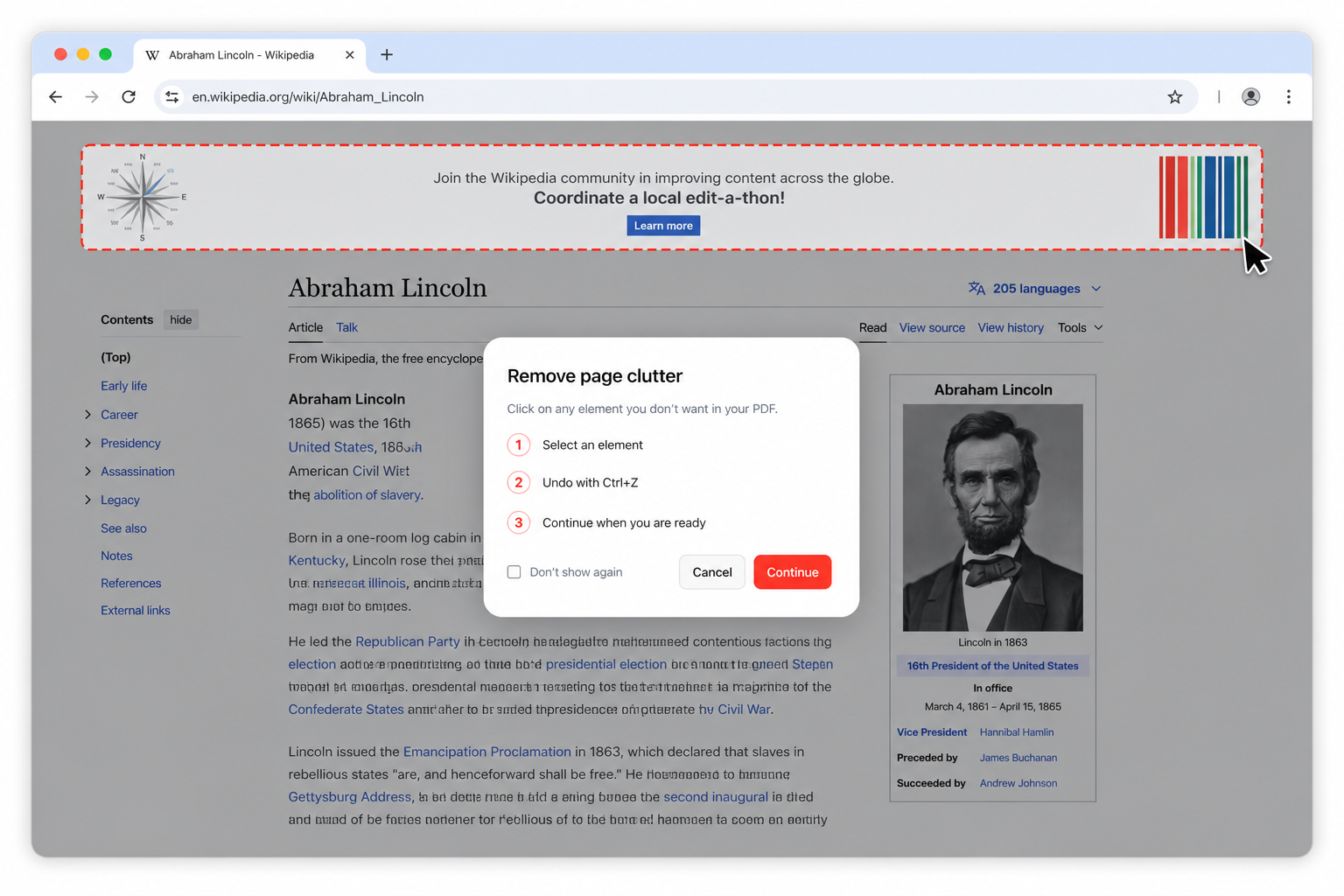
Point at the newsletter overlay, the chat bubble, the "we value your privacy" monolith, and delete them from the page before converting. Ctrl+Z undoes a mistake. It stacks on top of the other three modes, so you clean first and export second.
Website to PDF converter options compared
| Capability | Page to PDF | Online converter | Chrome print dialog |
|---|---|---|---|
| Converts pages behind a login | Yes | No | Yes |
| Selectable text in the output | Yes | Often raster | Yes |
| Loads lazy images before capture | Yes | Rarely | No |
| Sticky header repeated on every sheet | Hidden | Depends | Repeated |
| Export one element only | Yes | No | No |
| Page content leaves your machine | Never | Always | Never |
| Crawls an entire domain | No | Some do | No |
| Free with no cap or watermark | Yes | Usually limited | Yes |
What people convert
Every install has its own reason, and the pattern repeats across all of them: the page matters more than the site.
- Evidence and records. Terms that quietly changed, a listing before it was edited, a policy page on the day it mattered.
- Receipts and confirmations. Flights, hotels, invoices, order summaries — Element mode grabs the confirmation block and nothing around it.
- Reading offline. Long articles for a flight, in a layout that survives a small screen.
- Internal documentation. One page from a wiki, sent to someone who does not have access to the wiki.
- Bug reports. The rendered state of the broken page, attached to the ticket, with the text still searchable.
FAQ
How do I convert a website to PDF?
Can it convert an entire website with all its pages at once?
Does it work on pages behind a login?
Is the text in the PDF selectable?
What paper sizes can I choose?
Is this website to PDF converter free?
Convert your first website to PDF in about a minute.
Free Chrome extension. Vector output, logged-in pages, zero uploads.
Add to Chrome