
To download a web page to PDF: install Page to PDF, open the page, click the toolbar icon and choose Full Page. The file renders in your browser and opens in a viewer — check the page count, hit download, done. No URL is sent anywhere, which is why it also works on pages you had to log in to reach.
Internet page to PDF, URL to PDF, link to PDF — same job, four names
People search for this in wildly different words, and the words hide a real distinction worth understanding before you pick a tool.
Say URL to PDF or link to PDF and you usually mean: here is an address, go fetch it. Some service opens that address on its own machine and hands you a file. Convenient, and completely blind to anything private — its machine is not logged in as you.
Say internet page to PDF or web to PDF and you usually mean: this thing on my screen, save it. That is a different operation. The page is already loaded, already authenticated, already rendered with whatever the JavaScript decided to show you. All that is left is turning pixels-worth-of-DOM into a document.
Page to PDF does the second one. It never fetches a URL — it converts what your browser already built.
How to download the web page you're on
- Install once. Add it from the Chrome Web Store and pin the icon. No sign-up screen, no email.
- Open whatever you want to keep. An article, a thread, a receipt, a dashboard, a documentation page.
- Click the icon, pick a mode. Full Page grabs everything; Article strips the site furniture; Element saves one block; Cleanup lets you delete the banners first.
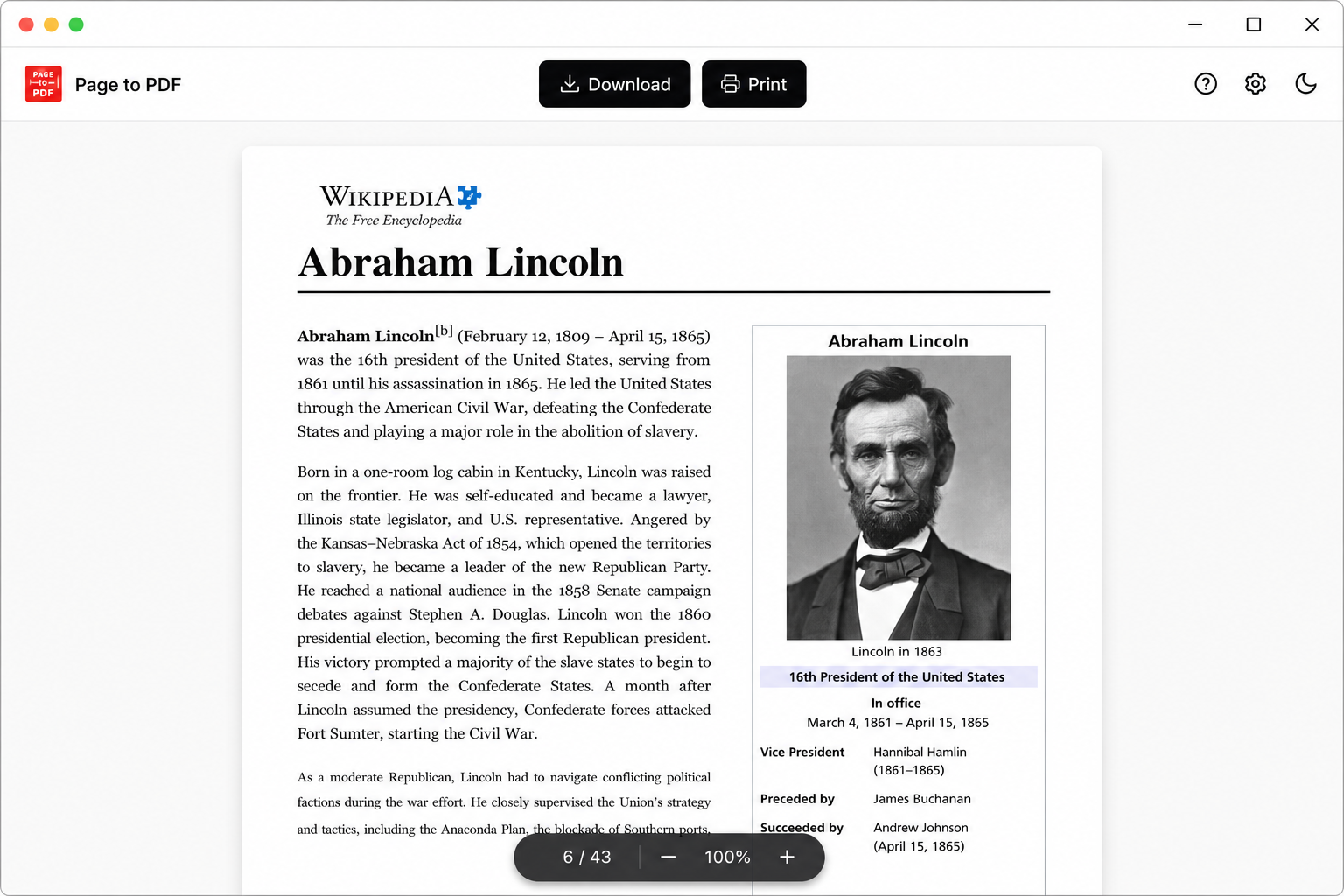
- Download from the viewer. It opens automatically with zoom and a page count, so you can see what you're saving before it hits the disk.
Why bother, when the page is right there
Because pages rot. An article gets paywalled six months later, a product page changes its terms overnight, a forum thread is deleted along with the answer you needed, a client's staging site is torn down the week after launch. A PDF on your disk does none of those things.
The other reasons are duller and more common:
- Reading without a connection. Long-form on a plane, in a tunnel, or anywhere the roaming bill says no.
- Sending one page to someone. Nobody wants a link to page 47 of an internal wiki they cannot open.
- Attaching to something. Tickets, expense reports, legal files, university submissions — they take a PDF, not a URL.
- Keeping a dated record. The version that existed on the day you looked at it.
- Printing. Straight from the file, with the cookie bar already gone.
The download is a document, not a picture of one
This is the part that separates good web to PDF tools from the rest. A lot of "save page" extensions take a tall screenshot and wrap it in a PDF container. It looks identical in the preview and falls apart the moment you need anything from it.
Page to PDF renders through Chrome's own print engine, so what you download behaves like a document:
- Search the text with Cmd+F; your OS indexes the file's contents too.
- Copy a quote out without retyping it.
- Click a link inside the PDF and land on the live page.
- Zoom to 400% and read crisp type instead of a blur.
- Watch the file size stay in the hundreds of kilobytes rather than tens of megabytes.
Screen readers can read it as well, which matters more than it sounds — a rasterized "PDF" is a locked door for anyone using assistive tech.
Long pages, lazy images, and the reason the print dialog disappoints
Chrome's Cmd+P already writes PDFs, and for a short static page it is the correct answer. Nothing to install, nothing to trust.
It falls over on modern pages in three predictable ways. Images below the fold never loaded, so they print as blank rectangles. Infinite-scroll content was never in the DOM, so the file stops halfway. And the sticky header that follows you down the page gets stamped onto every single sheet.
The extension deals with all three before rendering: it scrolls the page to the bottom to trigger lazy loading, hides fixed and sticky elements, then converts. Afterwards it can reload the tab so you are not left staring at the footer of an article you were halfway through.
The trade-off is honest: pre-scrolling takes a few seconds on a heavy page, and a very long feed takes longer still. You are paying seconds to avoid blank boxes.
Picking your tool by situation
| What you're saving | Best approach |
|---|---|
| Short public article, no images below the fold | Chrome print dialog |
| Long read with lazy-loaded images | Page to PDF — Full Page |
| Article you want in a clean reading layout | Page to PDF — Article |
| Receipt, ticket or one card on a busy page | Page to PDF — Element |
| Dashboard or anything behind a login | Page to PDF — Full Page |
| Batch of public URLs, no login needed | An online URL-to-PDF service |
| Anything confidential | Anything that runs locally |
Nothing to upload means nothing to leak
Online converters have to receive your address to do their job, and frequently receive the page HTML along with it. Their retention policy is a paragraph you will never read on a server you will never see.
This extension has no server component at all. The conversion happens in your Chrome process, the file goes to your downloads folder, and there is no request in between. No account exists, so there is no profile to build. The privacy policy spells out exactly what is stored locally and why.
FAQ
How do I download a web page to PDF?
How do I convert an internet page to PDF without installing software?
Can I paste a URL and get a PDF back?
Is the downloaded file a screenshot or real text?
Does the PDF work offline?
Is there a limit on how many pages I can download?
Download your next page instead of bookmarking it.
Free Chrome extension. Vector PDFs, offline-ready, nothing uploaded.
Add to Chrome