
Best way to convert page to PDF
If you only need to convert a short, simple page to PDF, Chrome's built-in print dialog is enough — press Cmd+P (or Ctrl+P) and pick Save as PDF. If the page is long, logged-in, lazy-loaded or cluttered with sticky elements, install the Page to PDF extension so the output stays clean, selectable and local. Avoid online converters when the page contains anything sensitive — they fetch the URL from their own server.
Method 1: Chrome's built-in "Save as PDF"
Chrome ships with a free PDF converter hidden inside the print dialog. It works on every page Chrome can open, and it doesn't upload anything — the conversion runs entirely on your machine.
Steps
- Open the page in Chrome.
- Press Cmd+P (Mac) or Ctrl+P (Windows / Linux). The print dialog opens.
- Under Destination, click Change… and pick Save as PDF.
- Optionally tweak Layout (Portrait / Landscape), Pages, Paper size and Margins.
- Click Save. Pick a folder. Done.
Pros
- Built into Chrome — nothing to install.
- Vector output: text stays selectable.
- Works on logged-in pages.
- Fully local — no upload.
Cons
- Lazy-loaded images stay blank.
- Infinite-scroll feeds get cut off.
- Sticky headers and sidebars repeat on every page.
- No way to export just one block of the page.
- No reader/article mode — banners and ads make it into the PDF.
Use it when: the page is short, simple, mostly text, and you don't care about ads or sidebars in the output.
Method 2: How to convert a web page to PDF with Page to PDF (recommended)
Page to PDF is a free Chrome extension that fixes everything the print dialog doesn't. It uses the same Chrome rendering pipeline (so the output is still a real vector PDF), but adds the missing pieces: pre-scrolling, hiding sticky elements, an element picker, an article reader, and a "remove this clutter first" mode.
Step 1 — Install the extension
Open the Chrome Web Store listing and click Add to Chrome. Then pin the icon next to the address bar so it's one click away. No signup, no account, no permissions beyond what each conversion needs.
Step 2 — Open the page you want
Anything Chrome can render: an article, a dashboard, a Notion doc, an Airbnb itinerary, a bank statement, a wiki page, an analytics chart, a Stack Overflow thread. If you can see it in Chrome, the extension can convert it — including pages behind a login, because it operates on the rendered DOM in your active session, not via a headless server fetch.
Step 3 — Pick a conversion mode
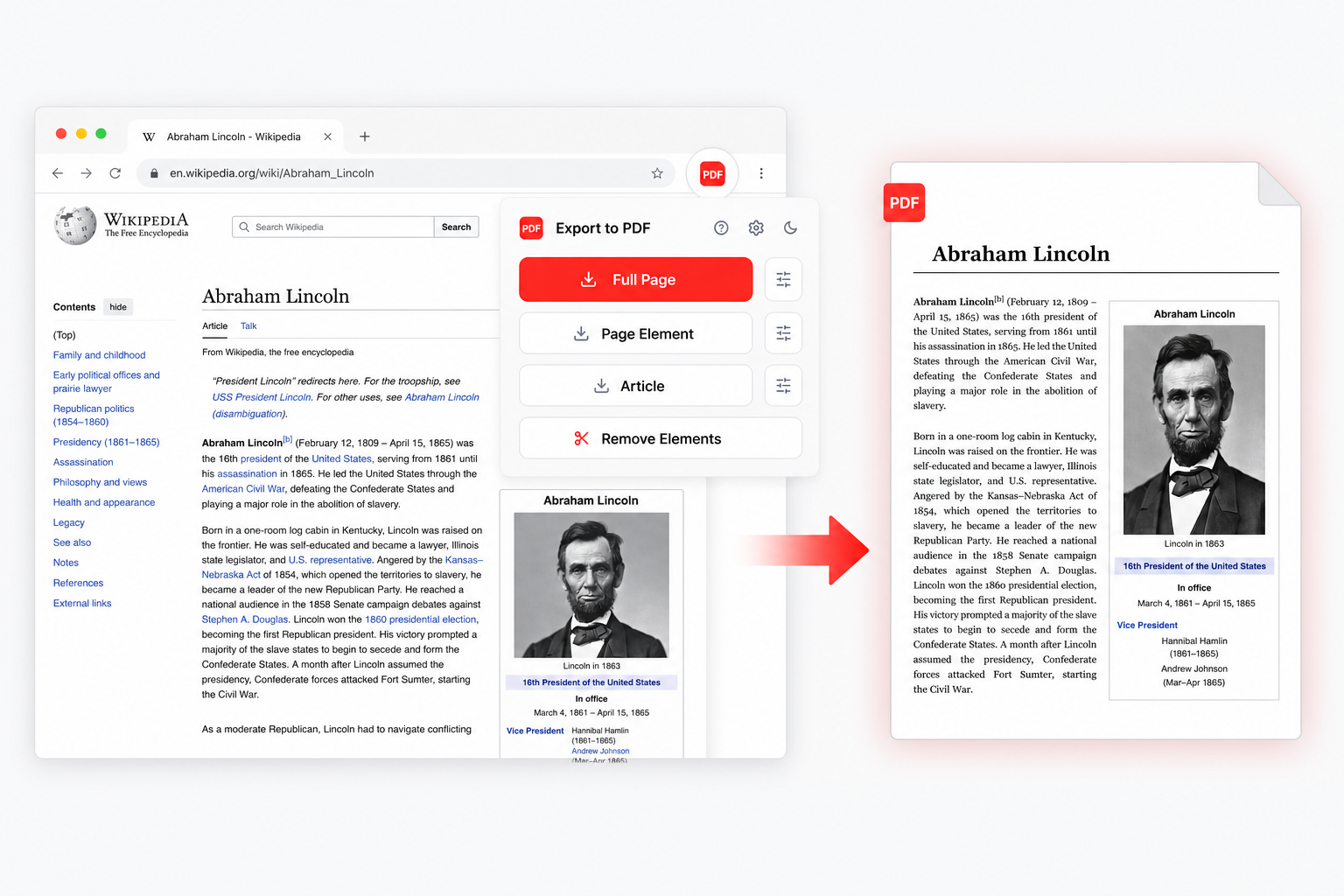
Click the extension icon. The popup gives you four options:
- Full Page — the whole document top to bottom. The extension pre-scrolls to fire lazy-loaded content, hides sticky headers and sidebars so they don't repeat on every page, then stitches the result. Best for long articles, search results, dashboards, infinite-scroll feeds.
- Single Element — click a specific block (a chart, a table, a recipe, a quote). The picker walks the DOM with the arrow keys so you can grow or shrink the selection until you've got the exact node. Optional margins. Best for "I just want this one piece" cases.
- Article Mode — strips ads, sidebars, comments, popups, navigation. Powered by Mozilla Readability (the engine behind Firefox's Reader View). Renders the article in a clean serif column with adjustable font size. Best for long-form reading material.
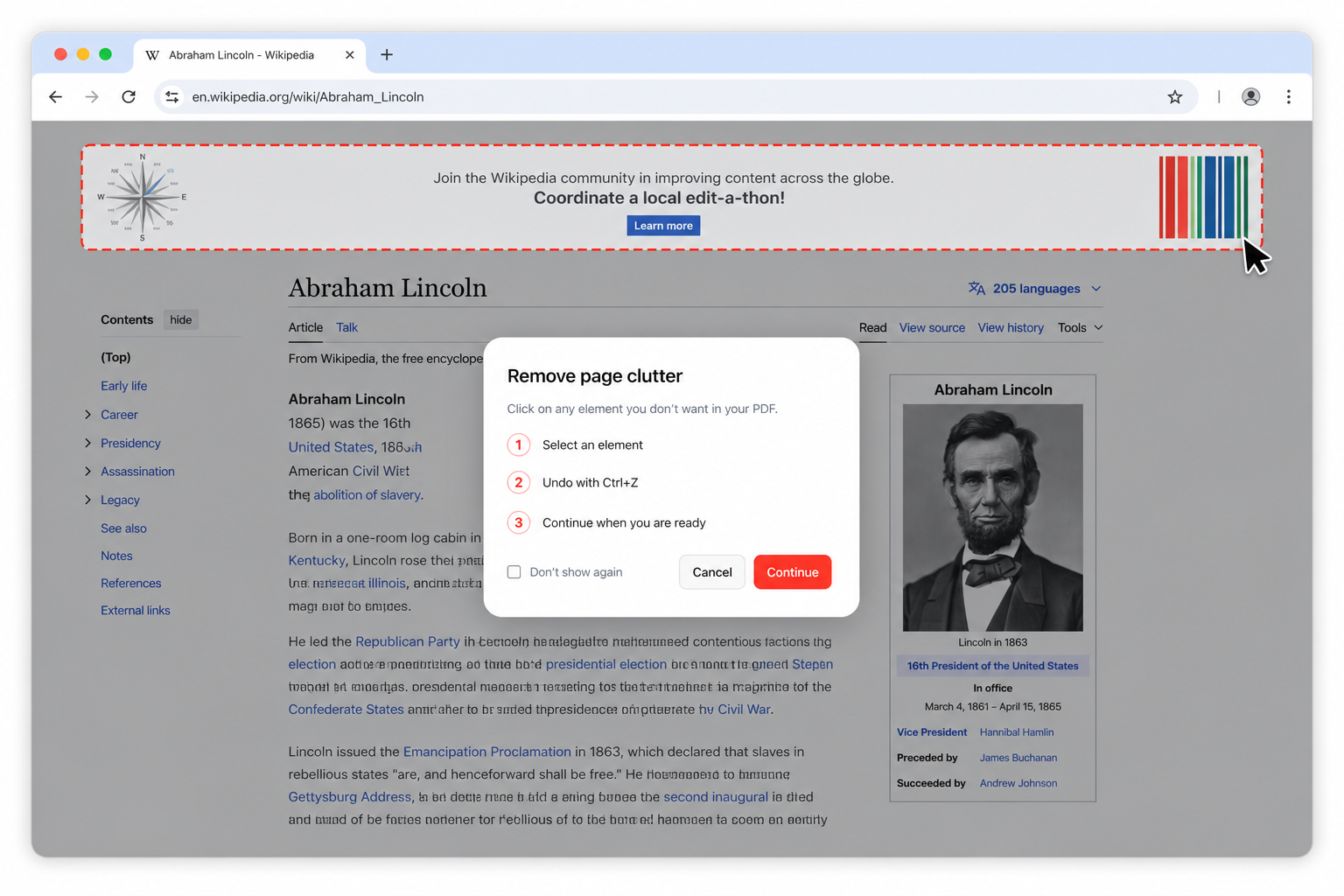
- Cleanup & Convert — point and click to delete cookie banners, sticky bars, "subscribe" overlays, chat widgets before the export. Ctrl+Z undoes mistakes. This mode stacks on top of the others — clean first, then export full-page or element. Best when the page is mostly fine but has a few annoying overlays.
Step 4 — Preview and save
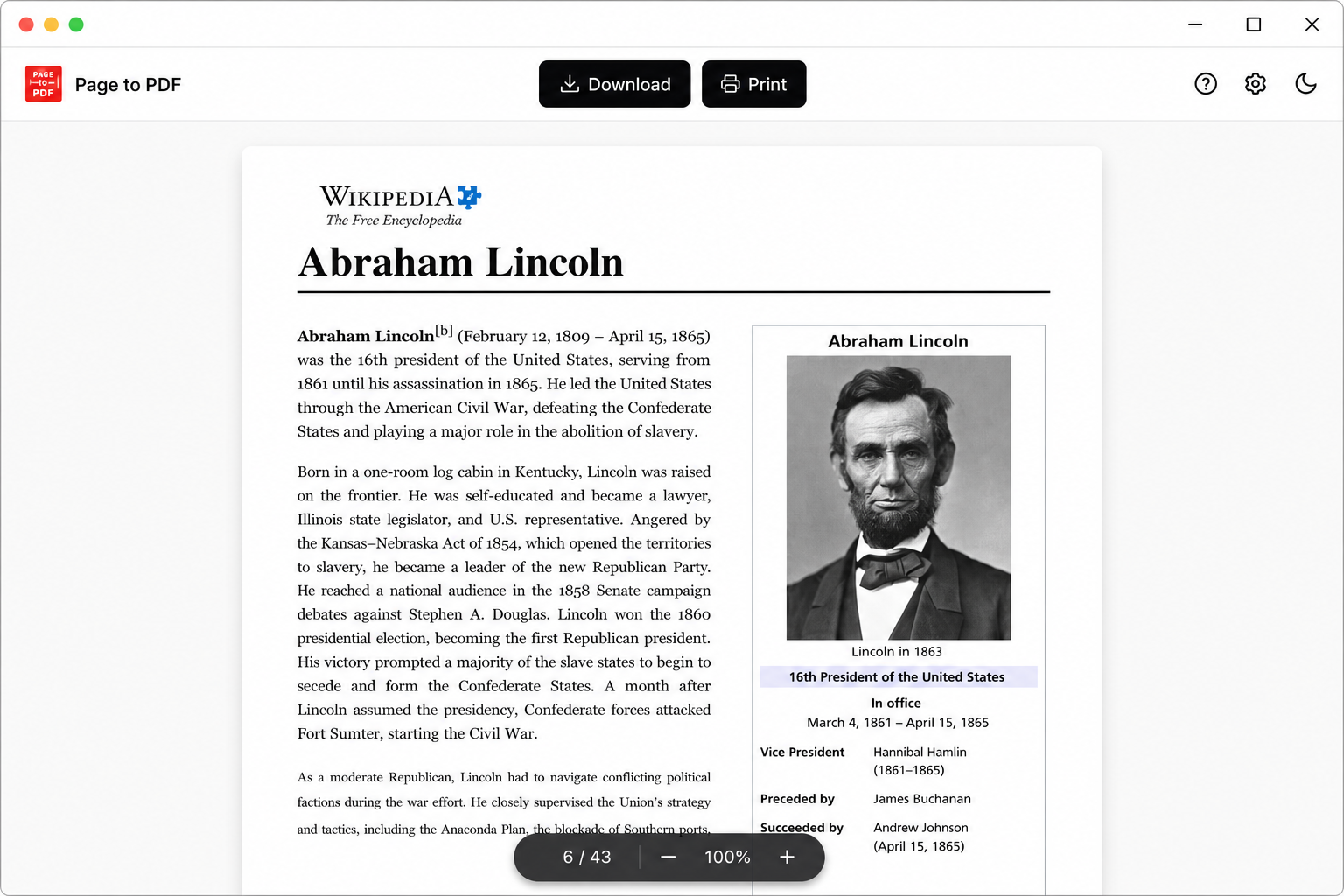
Every export opens in a built-in PDF viewer with zoom, page count, file size and a one-click download. If the result isn't what you wanted, close the viewer, tweak the mode or settings, run again. Past exports stay cached locally so re-opening them doesn't re-render the page.
Pros
- Vector output — selectable text and clickable links.
- Pre-scrolls infinite feeds; hides sticky elements.
- Element / Article / Cleanup modes the print dialog doesn't have.
- Works on logged-in pages.
- 100% local — no upload, no signup.
- Free, no daily limit, no watermark.
Cons
- Adds an extension (one extra install).
- Chrome / Chromium-based browsers only.
Full feature breakdown: the web page to PDF converter page.
Method 3: Online web page to PDF converters
There's a long list of websites where you paste a URL and they email back a PDF. They have their place — but it's a smaller place than most people think.
Steps
- Open the converter site.
- Paste the URL of the page.
- Click Convert. Wait. Download.
Pros
- Nothing to install — runs in any browser.
- Some offer batch conversion of multiple URLs.
Cons
- The URL is fetched anonymously from their server — anything behind a login or paywall returns an error or a logged-out version.
- Your URL (and sometimes the page contents) end up on a third-party server. Bad for anything sensitive.
- Many produce raster screenshots dressed as PDFs — no selectable text, big files.
- Daily limits, watermarks, or "go premium to unlock" gates are common.
- Slow — page has to be fetched and rendered remotely.
Use it when: the URL is fully public, you don't want to install anything, and you don't mind the upload.
How to save a webpage as PDF on each device
The three methods above assume a desktop browser. Here is the same job on everything else, because "how to save a webpage as PDF" means something different depending on what you're holding.
Windows and Linux
In any browser, Ctrl+P, then set the destination to Save as PDF (Chrome and Edge) or Microsoft Print to PDF (the system printer, available everywhere including Firefox). Both write a vector file. The system printer route respects fewer of the page's print styles, so if the layout looks wrong, try the browser's own option first.
macOS
Cmd+P and pick Save as PDF from the destination list. Safari also has File → Export as PDF, which skips the print dialog entirely and tends to preserve long pages better than printing does. Both produce selectable text.
iPhone and iPad
In Safari, tap the Share button, then Options at the top of the sheet, choose PDF instead of Automatic, and save to Files. Picking Reader PDF instead gives you the article stripped of navigation and ads — the mobile equivalent of Article mode. There is no extension option here; iOS Safari does not support this kind of extension.
Android
In Chrome, open the ⋮ menu, tap Share, then Print, and set the destination to Save as PDF. The menu's "Download page" item saves an offline copy in MHTML format rather than a PDF, which trips people up regularly. Same limitation as iOS: extensions do not apply.
The extension covered in Method 2 is Chrome-desktop-only — Chrome, Edge, Brave, Opera, Vivaldi and Arc. On phones you are working with what the OS gives you, and the OS gives you the print dialog with all its usual weaknesses on long pages.
Which method should you use?
| Scenario | Best method |
|---|---|
| Short article, no infinite scroll, no overlays | Chrome Print → Save as PDF |
| Long-form article, want a clean reading layout | Page to PDF — Article mode |
| Infinite-scroll feed (Twitter / X, Reddit, search results) | Page to PDF — Full Page |
| Dashboard, internal tool, anything behind a login | Page to PDF — Full Page or Element |
| Receipt, ticket, booking confirmation | Page to PDF — Element or Cleanup |
| One specific chart / table / card on a busy page | Page to PDF — Single Element |
| Page is fine but has cookie banner / chat widget | Page to PDF — Cleanup |
| Public page, you want zero installs, don't care about upload | Online converter |
| Sensitive content (banking, HR, drafts, internal docs) | Anything except online converters |
FAQ
What is the easiest way to convert a web page to PDF in Chrome?
Why does Chrome's Save as PDF break on long pages?
Can I convert a web page to PDF without uploading it anywhere?
How do I convert just one section of a page, not the whole thing?
What is the best way to convert page to PDF?
Can I convert page to PDF with selectable text?
How do I save a webpage as PDF on a Mac?
How do I save a webpage as PDF on iPhone or Android?
Why do images come out blank when I save a webpage as PDF?
Convert your next page in 30 seconds.
Free Chrome extension. No signup. Vector PDFs that respect logged-in pages and infinite scroll.
Add to Chrome